Launching PalmettoBUG
To launch the GUI, enter the (conda) environment where you installed the package, then type the following command in the terminal:
>>> palmettobug
Alternatively, you can launch the GUI from a script / jupyter notebook by the following code (this has the advantage of a MUCH faster restart time if you close / re-open the program in the same python session):
>>> import palmettobug as pbug
>>> pbug.run_GUI()
This should launch the PalmettoBUG GUI into the starting tab:
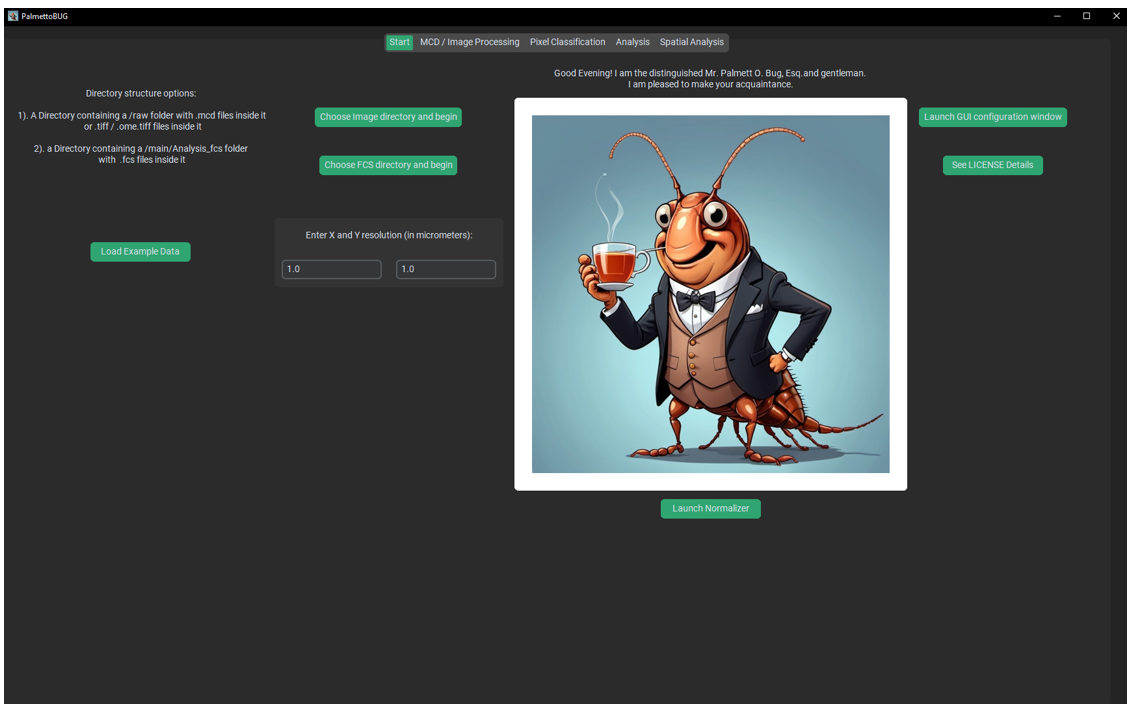
Don’t mind me, I think you’ll find that I’m a very hospitable cockroach!
Loading Data into PalmettoBUG
To load data into palmettobug, use one of the two buttons in the center of the starting screen of the program.
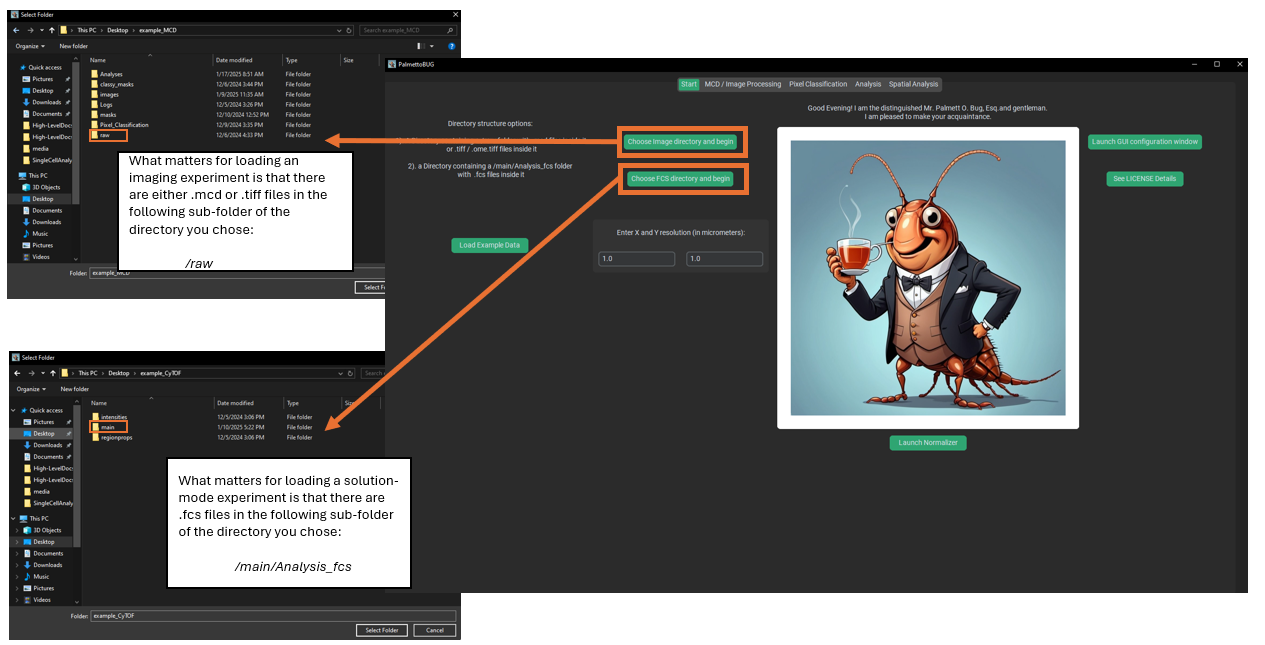
For imaging experiments, you must have either .mcd files (the common export file type from Standard BioTools’ Hyperion images) or .tif / .tiff files. MCD and TIFF formats are the only file types supported by PalmettoBUG! If you want to analyze images saved in an alternate format, you must convert them to .tiffs first – in most cases there should be an opensource tools available to accomplish that conversion, as .tiffs are an extremely common format for images.
Regardless of whether the experiment is from .mcd files or .tiff files, you should first check the XY resolution in the field immediately below. By default, this is 1.0 micrometers / pixel in both X and Y directions, but if your data has a different resolution you’ll need to change that BEFORE loading the data. Then, click either of the top two buttons to launch a file explorer window where you will be able to choose a directory on your device. The critical expectation PalmettoBUG has for this directory is that it contains a folder called /raw that contains all your .tiff / .mcd files for the experiment (and only those files). This is all that is required to start a PalmettoBUG project.
Clicking the “Choose FCS directory” also launches a file explorer window but has a very different expectation – in this case, PalmettoBUG expects to find a /main/Analysis_fcs sub-subfolder containing .fcs files for the experiment (and only those files). This means that you need to create two layers of folders in your desired directory – first a /main folder, then an /Analysis_fcs subfolder (capitalization sensitive!).
If loading fails, PalmettoBUG will hopefully give you a helpful error message, to let you know that the data loading failed and maybe provide a suggestion about why. At the same time, since PalmettoBUG is operating through the terminal you can always check the terminal for any detailed error message, in case the program is encountering an error I did not anticipate!
Tips, Errors, and expectation –
Common errors for loading the data include:
Do not mix .mcd and .tiff files in you /raw folder for an imaging project! PalmettoBUG expects one or the other file type, not a mixture! If you have a mixture of .mcd’s and .tiff’s for some reason, create two separate projects and perform the first Image Processing step for each (/raw –> /images/img), then combine the projects by copying the output of that first step from one into the other. Also, be careful with mixing .tif and .tiff file extensions — PalmettoBUG automatically converts the .tif extension (with one f) to .tiff for all images it processes, so if you have images with the same name, but differing only by .tif / .tiff, one of them will be overwritten by the other when processed by PalmettoBUG!
Do not mix images with different panels / channels! PalmettoBUG expects all the channels & the channel order to be the same across the images of a dataset – if this is not true then using the full PalmettoBUG pipeline isn’t possible, and you are more likely to create errors and inaccurate results than useful data!
Selecting a sub-folder of the directory you actually want. For example, you click the button to load a .tiff experiment. Then you navigate to the directory where you made a /raw folder and placed your experiment’s .tiff files into it. However, you click on the /raw folder and then click “Select Folder” to load the directory into PalmettoBUG. This will create an error when PalmettoBUG tries to load from project_directory/raw, instead of project_directory – it will then look for project_directory/raw/raw to look for the .tiff files, and not finding it will return an error and refuse to load.